
Reference video
4s
Moonlit Android Scene
A text prompt becomes a cinematic android shot under a giant moon, with neon skyline lighting and smooth motion.
Create cinematic AI video drafts from text prompts, reference images, camera directions, and audio ideas. Plan your 2026 video workflow with Veo 4 Preview, then prepare final MP4 renders for Veo 3.1 models.
Gemini Omni video workflow for Veo 4 preview rendering
Veo 4 Preview is ready for login-gated video generation.
A cinematic wide shot of a glass research studio at sunrise, volumetric light, controlled camera push in, subtle ambient sound design.
The 2026 AI video workflow is shifting from one-shot novelty clips to controlled production planning. A Veo 4 AI Video Generator should help creators describe a scene, preserve intent, plan camera motion, and decide when a concept is ready for a real render.
veo4-video.art presents Veo 4 Preview as the planning layer for Gemini Omni video workflows. Use it to shape text-to-video prompts, image-to-video references, timing, motion, and audio notes before moving to a Veo 3.1 render path.
The result is a cleaner production loop: draft with semantic structure, review the timeline, then render the approved concept with a real video model when the Phase 3 integration is available.
A text prompt becomes a cinematic android shot under a giant moon, with neon skyline lighting and smooth motion.
Two astronauts walking through a frozen cavern, volumetric cyan light, steady camera movement, sci-fi realism.
A cat in a tiny space suit floats above Earth, playful surreal concept, crisp daylight and slow orbital drift.
Bioluminescent mushrooms glow inside a misty forest, shallow depth of field, slow macro camera push.
Lava and ocean coastline footage shifts into a dramatic travel-style shot with natural motion and wide framing.
A stylized fox rides a bicycle in a clean illustrated scene, showing how prompt intent can drive playful motion.
Gemini Omni reads subject, physics, camera intent, and style cues.
The prompt becomes a scene structure with timing and transitions.
Camera motion, composition, and audio notes are locked before render.
Veo 4 Preview creates a fast storyboard for creative review.
Veo 3.1 models turn the approved plan into downloadable MP4.
Fast video generation for social variants, rough concepts, and teams that need to test more ideas per session.
Higher-fidelity rendering for polished campaigns, film pitch assets, ecommerce B-roll, and client-ready drafts.
Preview workflows that include synchronized ambience, sound effects, and production notes for final edits.
| Feature | Veo 4 Preview | Veo 3.1 Fast | Veo 3.1 Pro |
|---|---|---|---|
| Availability | Live Veo 4 Preview | Live Veo 3.1 task | Live Veo 3.1 task |
| Output Type | Preview MP4 target | Fast MP4 target | Higher fidelity MP4 target |
| Best For | Prompt testing | Social iteration | Campaign drafts |
| Native Audio | generate_audio supported | Not supported | Not supported |
| Image-to-Video | Supported in UI | Supported in UI | Supported in UI |
Turn structured prompts into cinematic scene drafts with clear subject, action, lighting, and motion.
Start from a product, character, frame, or brand asset and preserve the reference while adding motion.
Specify push-ins, pans, tilts, orbit shots, handheld movement, drone sweeps, and rack focus.
Draft sound effects and atmospheric audio alongside motion so the edit is not silent by default.
Break one idea into scenes before spending credits on a final render.
Prepare outputs for standard editing pipelines, social publishing, and campaign handoff.
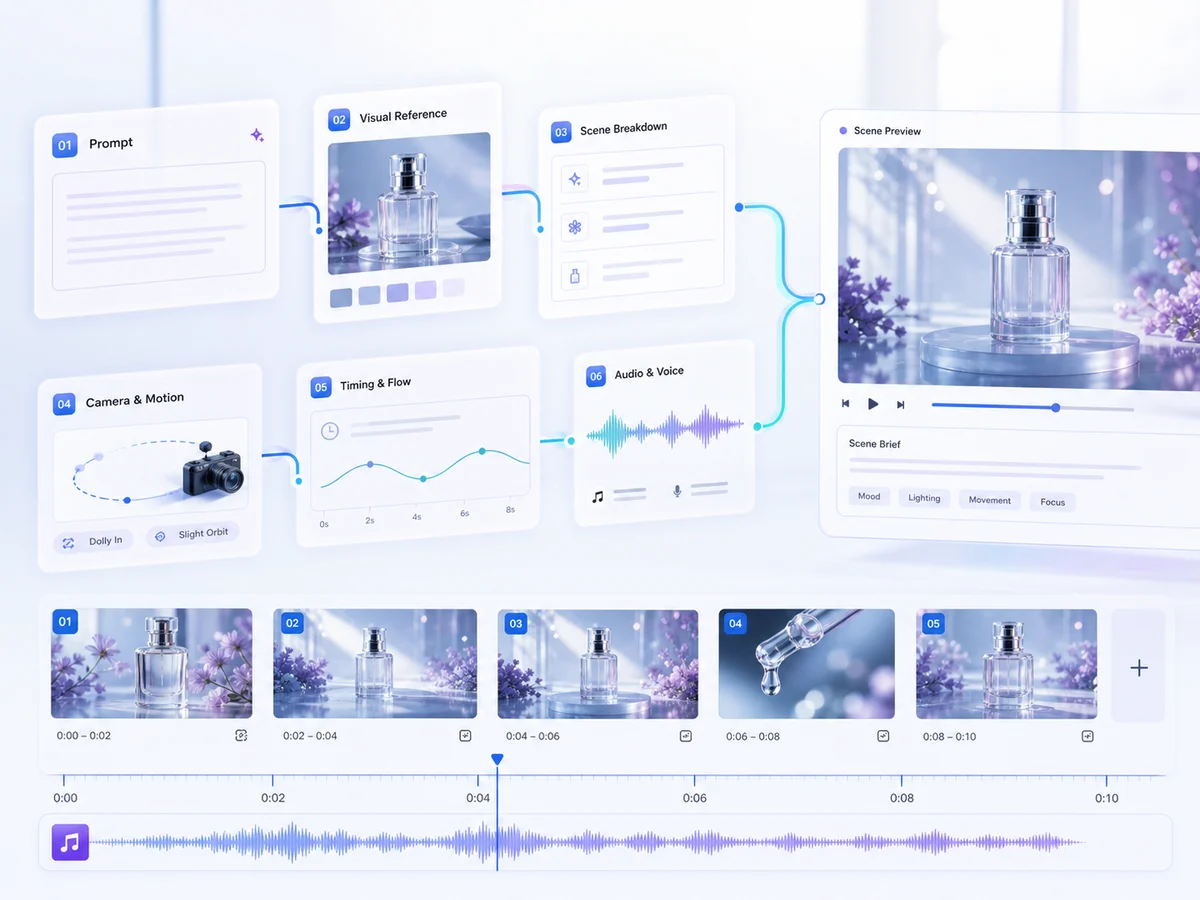
Visual workflow
Gemini Omni scene planner
Veo 4 workflow studio
Connect prompt, camera, timing, and audio into one production brief before you render.
Use this stage to turn one loose creative idea into a production-ready brief. The planner clarifies the subject, action, camera path, scene timing, sound intent, and output format before any credits are spent on a final render.
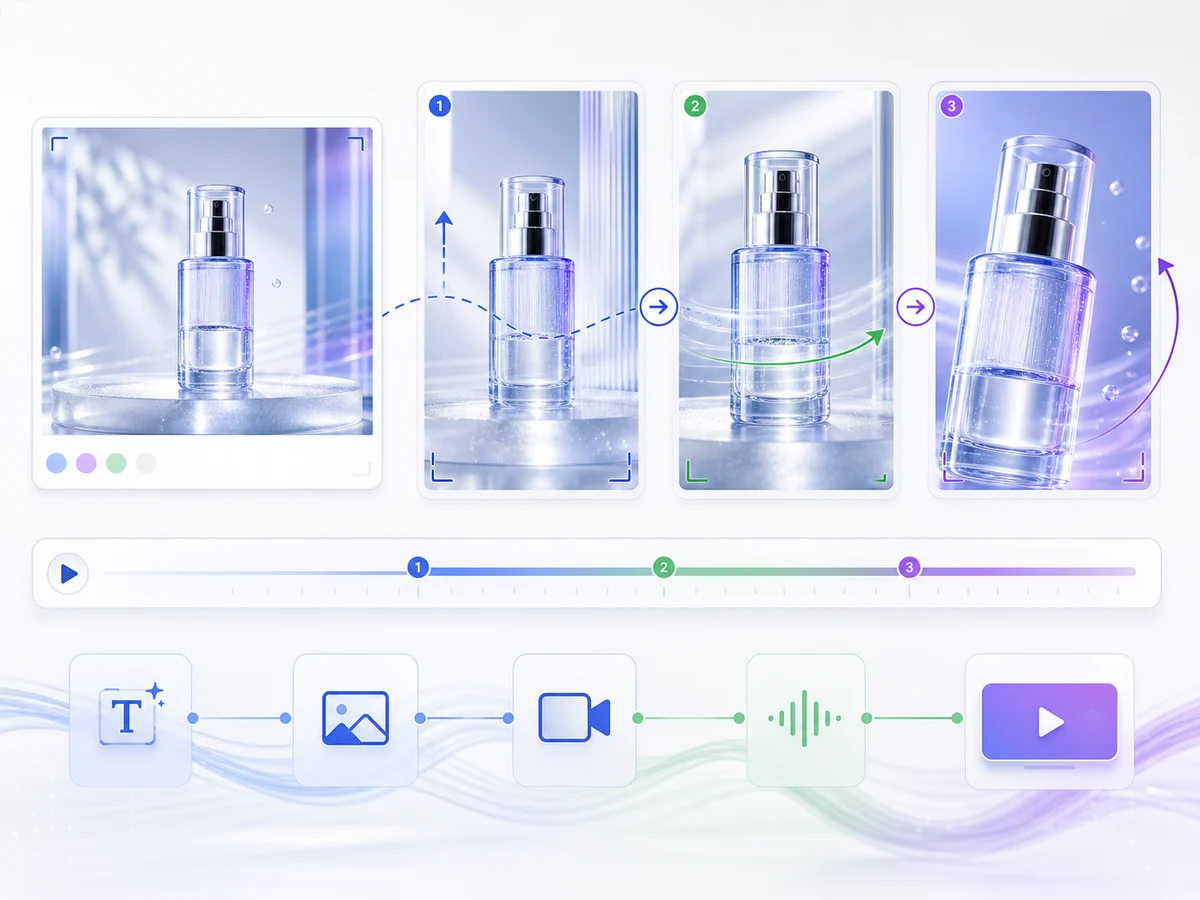
Visual workflow
Reference image to motion
Veo 4 workflow studio
Anchor product, character, or composition with an image, then describe what changes over time.
Image-to-video works best when the still frame carries identity and the prompt controls movement. Keep the object, face, or composition stable, then specify what changes: camera movement, lighting shift, background action, or product reveal.
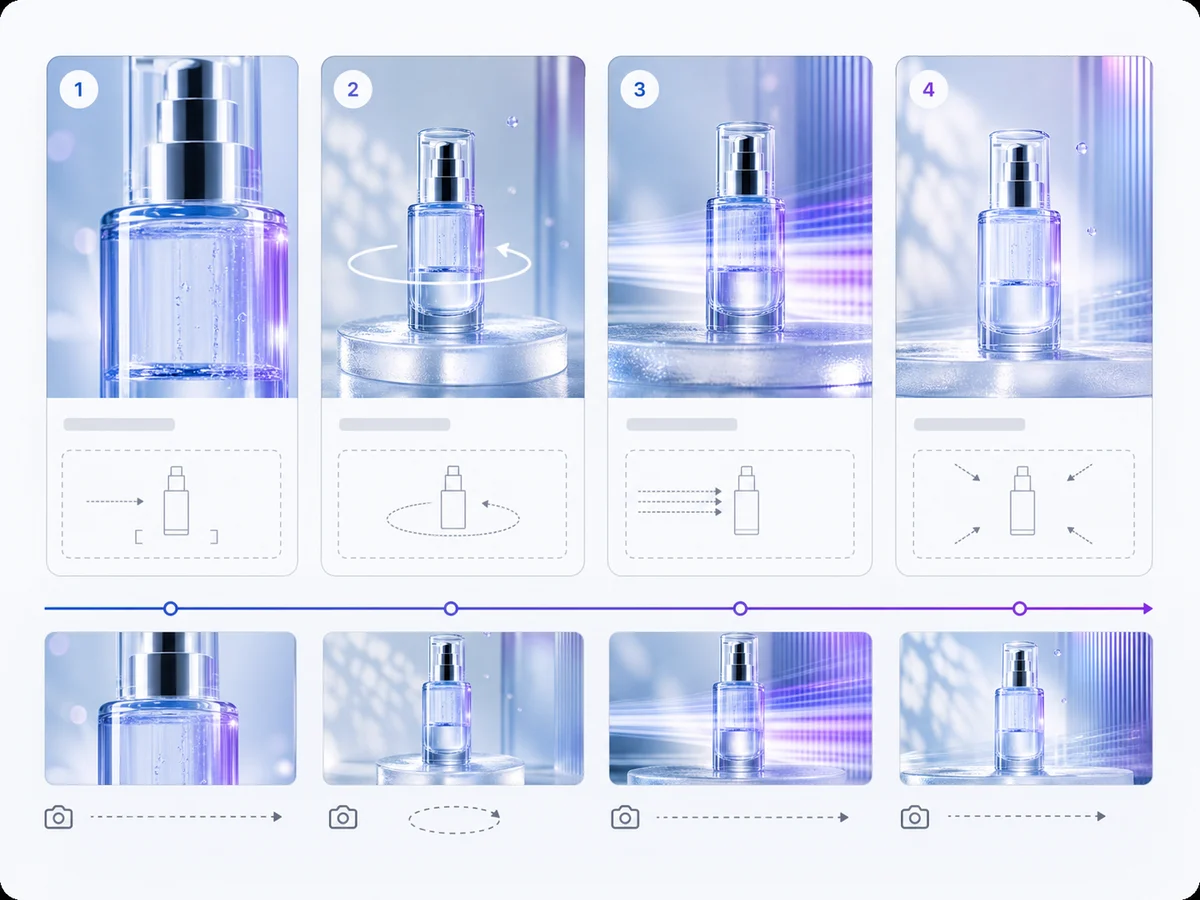
Visual workflow
Product video storyboard
Veo 4 workflow studio
Turn a product scene into a shot list with reveal timing, close-up motion, and consistent lighting.
For ecommerce and launch pages, build the sequence before rendering. Define the opening frame, macro detail, rotation arc, texture close-up, and final hero frame so the output has a clear commercial structure.
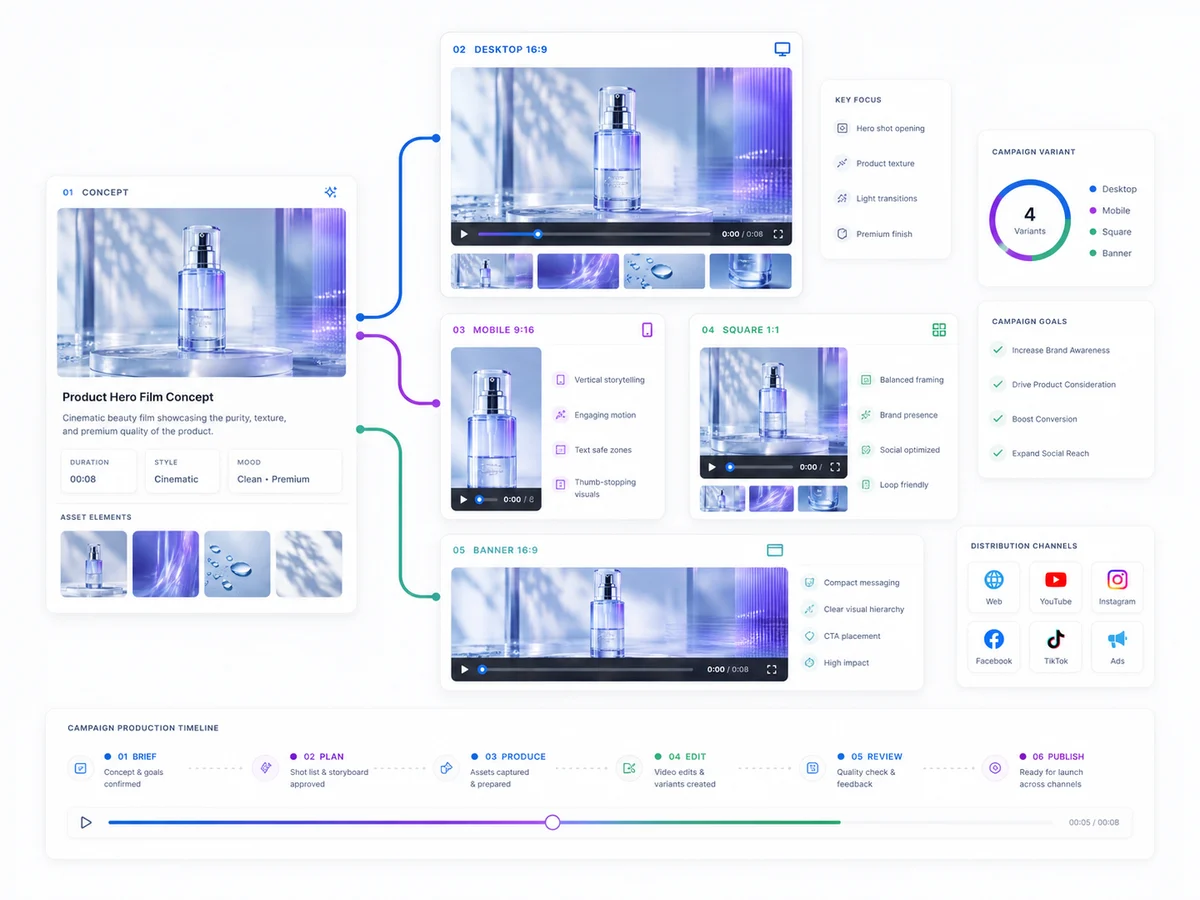
Visual workflow
Campaign variant workflow
Veo 4 workflow studio
Prepare multiple aspect ratios and scene directions for ads, launch pages, and social cuts.
Once the scene works, adapt it into the formats your campaign needs. Keep the same creative idea while planning horizontal, vertical, square, and short social variants with different framing and safe areas.
Prompt canvas
Subject
World
Camera
Prompt Better Veo 4 Videos
Strong video prompts define what changes over time and what must remain consistent. Use the DeepSeek prompt optimizer for a first pass, then keep the structure readable.
Write prompts in a stable order: subject and action, environment and lighting, then camera and style.
Define exactly what happens in the frame.
Set place, atmosphere, time of day, and materials.
Name lens, motion, pace, and visual language.
Veo 4 motion preview
Turn a structured prompt into a clear Gemini Omni video preview with scene timing, camera movement, subject action, and visual consistency before committing to a final render.
Break the idea into a beginning, motion beat, and final frame.
Lock push-in, orbit, dolly, handheld, or static movement.
Keep products, characters, lighting, and composition stable.
Use DeepSeek optimization to tighten the Veo 4 workflow.
A focused astronaut looking through a spaceship window, lit by blue nebula glow, shot on 35mm, slow push in, dramatic contrast.
A sleek sports car drifting on a wet city corner, neon reflections in puddles, low angle tracking shot, controlled motion blur.
Geometric glass shapes morph into organic plant life in a white studio, macro lens, soft shadows, precise depth of field.
A polished skincare bottle rotating on frosted glass, soft morning reflections, macro lens, gentle dolly arc, premium commercial finish.
Creator feedback
The prompt optimizer gets our product shots close enough that the first video pass is already usable for review.
Maya Chen
Growth Creative Lead
I like that the generator forces aspect ratio, motion, and audio decisions before we burn credits on a render.
Elliot Park
Short-form Producer
For ecommerce B-roll, the Veo 4 preview workflow is fast enough to compare directions before final editing.
Nora Blake
DTC Content Manager
The monthly and yearly credit view makes it easier to plan production volume before a campaign sprint.
Andre Lewis
Performance Marketing Director
Reference image mode gives our team a clean way to keep product shape and lighting consistent across variants.
Priya Shah
Ecommerce Creative Strategist
The scene timeline is useful for client approvals because it explains what should happen before we render.
Jonas Weber
Video Producer
I can test three camera directions in one session and hand the clearest option to our editor.
Clara Rossi
Social Content Lead
The Veo 4 preview flow keeps vague prompts from turning into wasted video drafts.
Miles Turner
Creative Operations Manager
For launch pages, the product storyboard cards help align copy, motion, and final aspect ratio.
Hana Kim
Brand Designer
The generator feels direct: prompt, reference, camera, quality, then credits. No hidden planning step.
Owen Patel
Agency Founder
Our team uses it to brief short ads before moving the strongest direction into a full render queue.
Sofia Martinez
Paid Social Producer
The audio toggle and motion controls make the prompt feel like a real video direction, not just a caption.
Daniel Brooks
AI Filmmaker
Start from a text prompt for ideation or a reference image when brand, character, or product continuity matters.
Use the Veo 4 preview model to test composition, camera motion, and scene logic.
Lock aspect ratio, duration, quality, camera motion, and audio intent so the render request is explicit.
Track the render until complete, then preview or download the returned MP4 output.
Search demand for Google Veo 4, Gemini Omni Video Generator, and Veo 4 AI Video Generator reflects a real production need: creators want video models that understand intent across time, not just a beautiful first frame.
The hardest problems in AI video are continuity, camera control, physical consistency, and audio direction. A prompt must become a plan that can survive multiple seconds of motion. That is why this homepage centers the generator workspace first and the SEO content second.
The Veo 4 Preview positioning gives users a place to test ideas with a streamlined render path while still presenting Veo 3.1 as a separate model family for final MP4 generation.
For marketers, filmmakers, ecommerce teams, and social creators, that distinction matters. The right workflow lowers wasted renders, makes prompt iteration visible, and keeps the final handoff compatible with standard editing and publishing tools.
Choose monthly for flexible creation, yearly for the lowest recurring cost, or one-time credit packs when you only need occasional Veo 4 preview and Veo 3.1 generation capacity.
Cancel anytime
Monthly
Pay month to month. Cancel anytime.
For casual creators and early testing.
A simple Veo 4 plan for weekly preview and render tests.
What is included
800 credits / month
For creators who publish often.
Balanced for active Veo 4 creators and small teams.
What is included
2,000 credits / month
For studios with heavier output.
Best for larger teams and steady client video volume.
What is included
6,000 credits / month
Pay as you go
No subscription. Credits are ready for occasional projects.
One-time credits for lightweight testing.
Good for testing prompts and references.
What is included
1,000 credits
One-time credits for active creators.
Best for regular production work.
What is included
5,000 credits
One-time credits for teams and client work.
Built for larger Veo 4 production cycles.
What is included
10,000 credits
Pay safely and securely with major cards and supported wallet payments.
No. veo4-video.art is an independent workflow interface for creators. Veo and Gemini are trademarks of Google LLC.
Yes. Render tasks are tracked through the video generation API, and completed output can be shown in the preview player and downloaded through the video download route.
Yes. Veo 4 Preview supports audio intent during setup, and audio output depends on the selected video model capability.
Veo 4 Preview is the Gemini Omni workflow for early Veo 4-style generation. Veo 3.1 options are separate model choices for users who want a different quality or speed profile.
It rewrites the prompt with clearer subject, motion, lighting, camera, and audio details. Login is required before optimization.
Yes. Aspect ratio, duration, quality, audio, and camera motion are included in the generation request so the model receives a clearer video direction.
The default Veo 4 Preview setup uses 188 credits for 6s, 1080p, and audio enabled. Longer 8s 1080p audio renders use 225 credits.
Yes. Image-to-video uploads a reference image first and uses it to guide the selected image-capable video model.
Optimize the prompt, choose the render model, control aspect ratio and audio, then send the task to a real video generation queue.
Generate NowLive stack